

Create a rule
Set up an automation rule step by step, turn it on, and check what it did.
A rule says: when this happens to these records, do these things. This article walks you through one rule from start to finish, then shows where to check its runs.
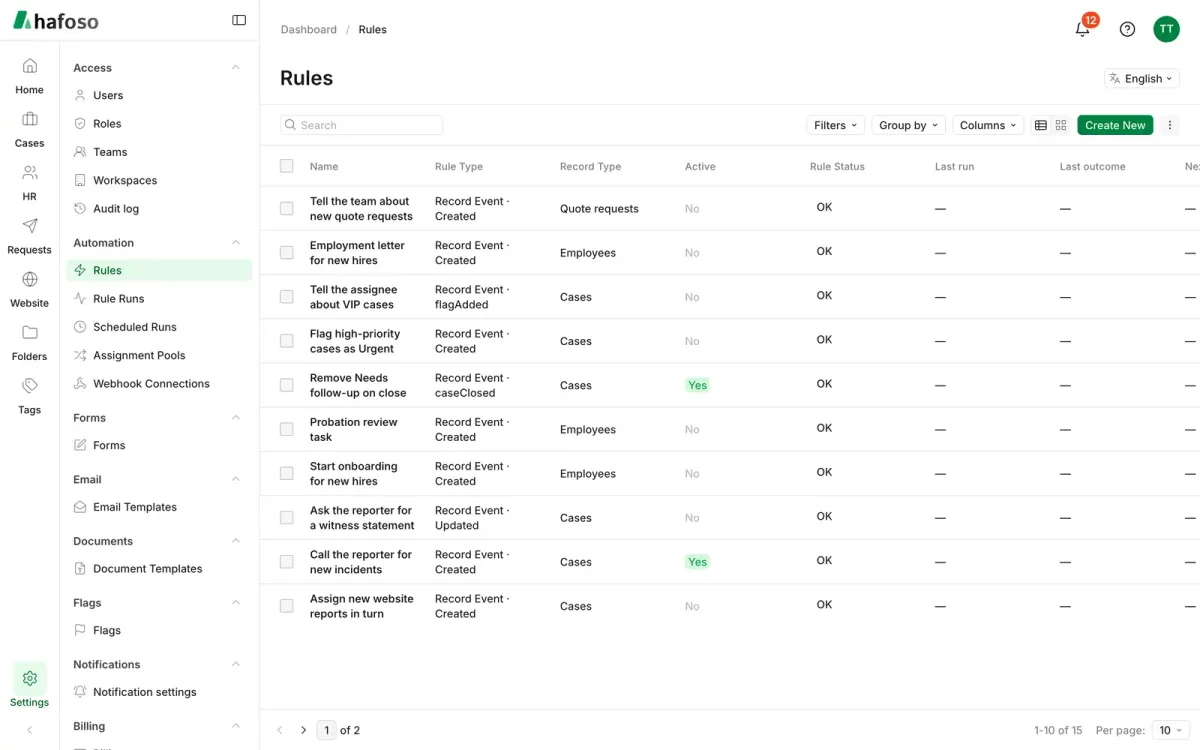
Set up the rule
Open Settings → Automation → Rules and select Create New. Give the rule a clear Name.
Choose the Rule Type and the Record Type, the kind of record the rule watches, such as Cases or Employees.
Set the trigger. For a Record Event rule, pick the event, and optionally Only when these fields change. For a Schedule rule, pick the Date Field and a Delay before or after it. For a Schedule Process rule, pick the Frequency and Trigger time. Schedules use the workspace's time zone unless you change Time zone.
Select Add criteria to limit which records the rule acts on. Test criteria shows how many records match right now.
Add one or more Actions. They run in order; tick Stop the rule if this fails on an action the later ones depend on. In messages, use Placeholders such as the record title or a link to the record.
Save, then turn on Active. A new rule stays off until you do.
The rule Acts as the person who last saved its actions, and can only do what that person is allowed to do. If that person leaves or loses a permission, the rule shows Needs attention and stops. Open it and save its actions again to make it act as you.
Check what it did
Select View run history on a rule, or open Settings → Automation → Rule Runs, to see every run with its record, its Outcome (such as Succeeded, Partly failed or Criteria not met) and each action's result and error. When a run failed, for example because an email address was missing, fix the cause and select Re-run or Re-run failed actions.
Scheduled Runs lists what Schedule rules and delayed notifications have planned for each record, with its Due time and State. When a record's date changes, its planned run moves with it.
Assign records in turn
To share new work fairly, add an Assign action, choose the field to assign, and set Assign to to Round-robin. Then choose who takes turns: People in turn, Roles in turn, Teams in turn, or Users matching conditions. Keep Only when nobody is assigned ticked to leave records that already have an owner.
Each group of people becomes an entry in Assignment Pools, showing its Members, who was Last assigned and how many records it has Assigned. Rules that use the same people share one turn order, so nobody is skipped or picked twice. People who can't open a record are passed over.
Send data to other systems
To call another system when something happens, first add it in Settings → Automation → Webhook Connections: its Base URL (https only), its Authentication and any Headers, then select Test connection. Credentials are stored encrypted and never shown again. In a rule, add a Call Webhook action, choose the Connection, a Path and what to send as Body, and use Send test before you turn the rule on.
Last updated on
Still need help?
Our team answers by email, usually within one working day.