

Plans and subscription
See your plan and usage, upgrade, downgrade or cancel, add capacity, and keep your card up to date.
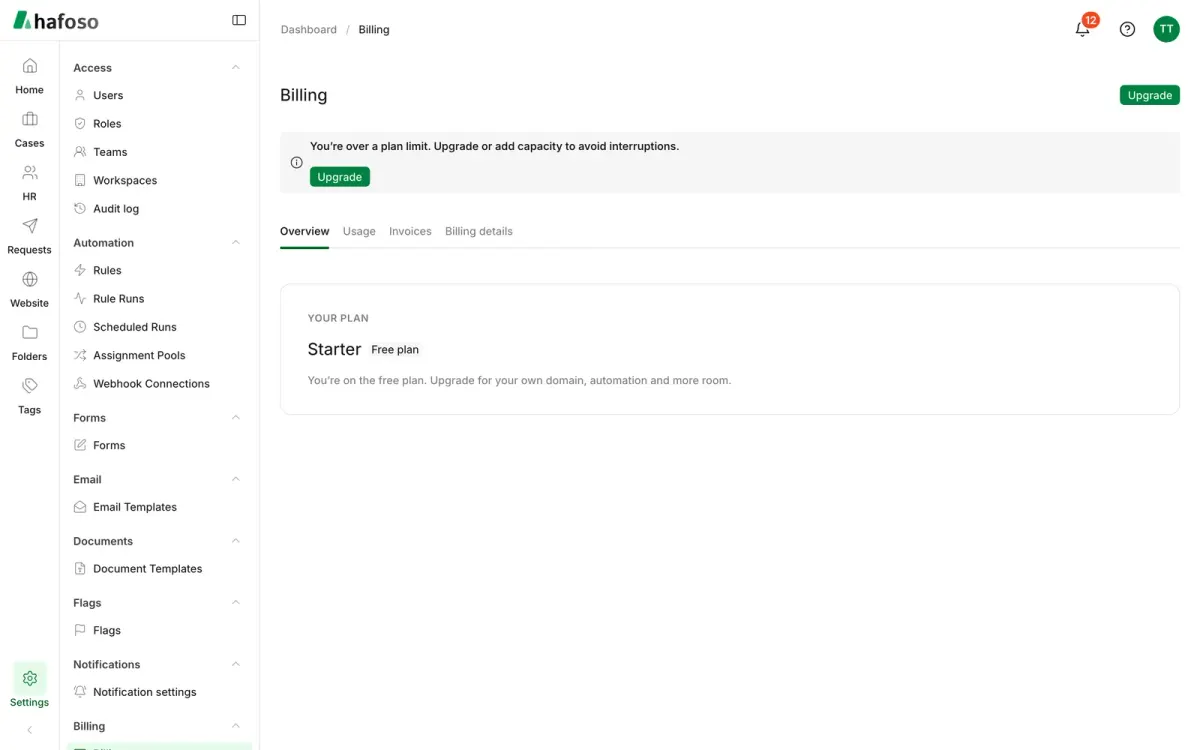
Your plan decides which features your workspace has and how much it can use: team members, employee records, cases, form submissions, storage, automation runs and emails. You manage it from Settings → Billing → Billing, which needs the Manage billing permission.
Upgrade to a paid plan
Open Settings → Billing → Plans.
Choose the Billing cycle: Monthly or Yearly (yearly gives you 2 months free).
Select Upgrade to Pro or Upgrade to Business. Check the amount you pay now and when the plan renews, then select Continue to payment.
Pay on the secure payment page. You come back to the workspace, and the new plan is active straight away.
If the payment doesn't go through, you stay on your current plan, nothing is charged, and you see why and can try again. Paid plans renew automatically on your card until you cancel.
Change, cancel or add capacity
On the Overview tab, Change plan takes you back to Plans:
- Upgrading applies at once. You pay only the difference for the rest of the current period, shown before you confirm.
- Downgrading happens at the end of the period you've paid for. Before you confirm, you see what the smaller plan pauses, such as automation rules or your own domain. Your pages, forms, cases and other data stay.
- Cancel plan keeps paid features until the end of the paid period; then the workspace moves to Starter and nothing more is charged.
Until a downgrade or cancellation happens, a banner shows the date, and Keep Pro (or your plan's name) undoes it.
Need more of one thing, such as storage or emails, without a bigger plan? Under Add-on packs, select Add capacity. Packs are billed with your plan, and the limit rises right after payment. Remove ends a pack at the end of the period.
The Usage tab shows each limit as used against included, and when monthly counts reset. You're warned at 80% and 100%. Monthly counts get a small buffer over the limit so work isn't interrupted; after that, new items of that kind are blocked until you upgrade, add capacity or the period resets.
Update your card
Your card shows on the Overview tab. To change it, select Update card and enter the new one on the secure payment page. A banner reminds you when the card is about to expire.
If a renewal payment fails, you and your billing contact get an email and a notification, and a banner asks you to update your card. The workspace keeps its paid features for a grace period while the payment is retried. Update the card in time: the outstanding amount is charged and the plan continues with no gap. If the payment still fails, the workspace moves to Starter, with all its data kept.
For receipts and VAT invoices, see Invoices.
Last updated on
Still need help?
Our team answers by email, usually within one working day.