

Handle a case
Open a case, work it through its statuses with todos, notes and emails, then close or reopen it.
A case starts when someone reports something and ends when your team closes it. Along the way you record who is involved, plan the work and keep every note, file and email on the case, so anyone picking it up sees the full story.
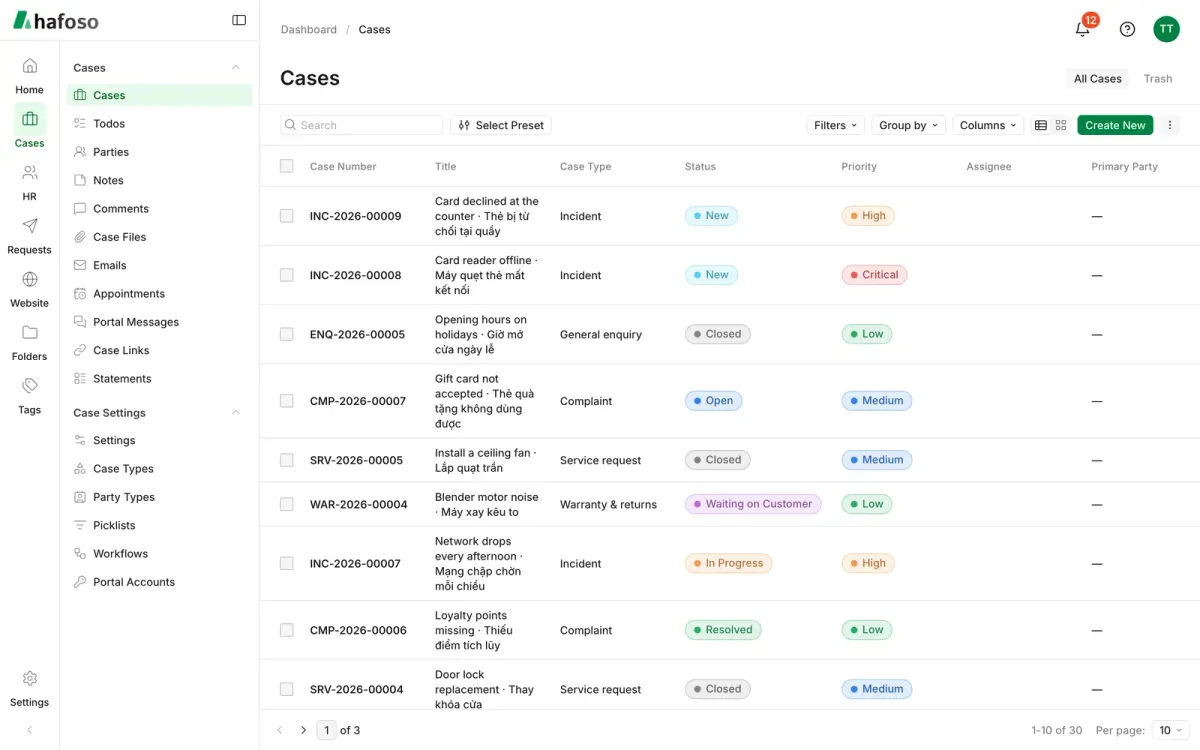
Open a case
Select Home → Shortcuts → New case, or open Case Management → Cases → Cases and select Create new.
Choose the Case Type, enter a Title and fill in Reported by: A user, Someone outside or Anonymous.
Set the Assignee, the Case Team, the Priority and the Due date. Many case types fill these in for you.
Select Submit. The case gets its Case Number and the first status of each workflow. Not ready yet? Select Save as Draft: you can already add parties, notes, files and forms, and submit later.
The assignee finds the case in Home → My work → My Cases, which lists their open cases, most recently updated first.
Move it through its statuses
The trackers at the top of the case show where it stands in each workflow. Open Move to… on a tracker to choose the next status: you're only offered the statuses that may follow the current one. Some statuses ask for a Comment or a Resolution before they accept the change.
- Closing: when the main workflow reaches a closed status, the case counts as closed. If it still has open todos, you choose to Mark them done, Cancel them or Keep them open.
- Canceling: tick Canceled and give a Cancellation reason, for example for a duplicate.
- Reopening: on a closed case, Move to… offers the status its workflow reopens to. You need the Reopen permission.
Closed and canceled cases become read-only. Only people with the Edit closed permission can still change them or undo a cancellation.
Work on the case
Each case has tabs for its records. Most work happens under Activities:
| Tab | Use it to |
|---|---|
| Todos | Give someone a task with a due date. They see it in My to-dos, and overdue todos are flagged. |
| Notes | Write down findings. Earlier versions of a note are kept. |
| Comments | Discuss the case with colleagues. Type @ to mention someone and they get an email. |
| Emails | Send email to the reporter, a party or anyone else, with a template and Attach Case Files. |
| Appointments | Plan an interview or meeting; attendees can get calendar invitations. |
Next to Activities, Parties lists the people and organisations involved (mark one Primary), Files holds uploads, links and generated documents, and Timeline shows everything that happened, who did it and when. Linked Cases connects related cases, and Forms and Requests appear when your workspace has forms for cases. To exchange messages with the reporter, use the Portal tab: see Reporter Portal.
Automations can assign new cases, add todos or send emails for you. See Create a rule.
Cases reported from your website
An admin can let visitors report a case from your website without signing in:
- In Case Management → Case Settings → Case Types, open the case type and, under Website intake, tick Accept reports from the website. Choose the fields to ask for and whether to Allow anonymous reports.
- Add a Report form block for that case type to a website page. See Edit pages.
Each report becomes a case with Reported through set to Website intake, the case type's default assignee and the first status of each workflow. The reporter sees the Case Number and an access code to follow it in the Reporter Portal.
Last updated on
Still need help?
Our team answers by email, usually within one working day.