

Edit pages
Build website pages from blocks, preview and publish them, write blog posts and manage your media.
Each page of your website is a stack of sections called blocks: a pricing table, a list of features, an FAQ, a contact form. You add, reorder and fill them in, check the result in a live preview, and publish when you're happy.
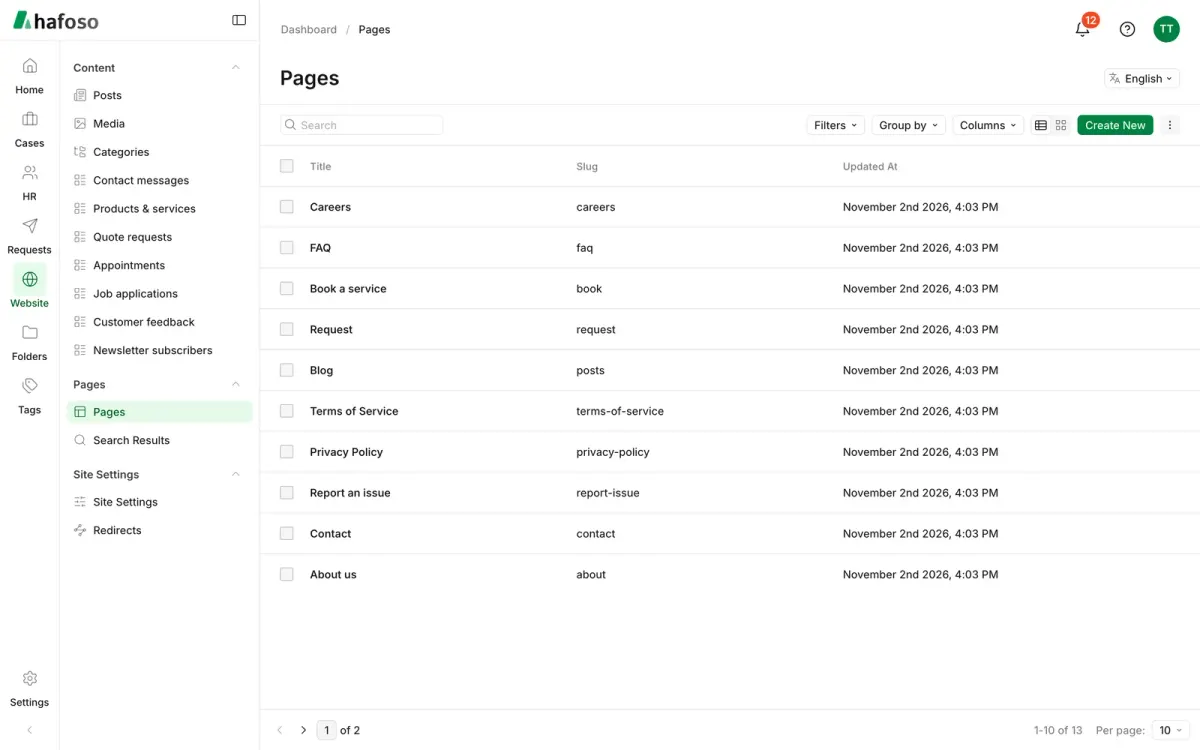
Create or edit a page
Open Website → Pages. Select a page to edit it, or Create New and give the page a Title.
On the Hero tab, choose the banner at the top of the page: High Impact, Medium Impact, Low Impact or None, with its text, buttons and image.
On the Content tab, add blocks such as Feature Grid, Pricing Table, Testimonials, FAQ, Stats or Contact details. Drag blocks to reorder them.
On the SEO tab, set the title and description search engines and social media show for this page.
Select Save Draft to keep your work without changing the live site. Open Live Preview to see the page as visitors will, next to the editor.
Select Publish changes to put the page live. To publish later, use Schedule Publish.
Publishing is its own permission. People whose role can update pages but not Publish can save drafts for someone else to review and publish. See Roles and permissions.
Posts, categories and media
Write blog posts in Website → Content → Posts. They have the same draft, preview and publish steps as pages. Give each post one or more Categories (managed in Website → Content → Categories) so visitors can filter the blog by topic.
Your blog lives at /posts. Its hero, SEO and any extra sections below the list of posts come from the page called
Blog in Website → Pages: edit that page to introduce your blog or add a call to action under it.
Upload images and other files to Website → Content → Media, or straight from a page or post when you pick an image. Media can be sorted into folders, and the same file can be used on many pages. Files in Media are public, so keep private documents out of it.
Switch the site template
Open Website → Site Settings and go to the Template tab.
Select Preview on a template to open your own site in that design in a new tab, without saving.
Select Use this template, then save. Every page changes design at once; your pages, media, menus and colours stay as they are.
The menu and buttons at the top of the site are edited on the Header tab of Site Settings, and the link columns, contact details and social links at the bottom on the Footer tab.
Last updated on
Still need help?
Our team answers by email, usually within one working day.