

Onboarding checklists
Build onboarding and offboarding templates, start a checklist for an employee and complete your tasks.
A checklist turns "someone starts on Monday" into tasks for the right people, each with a due date: HR prepares the contract, the manager plans the first week, the new hire uploads their ID. You set the tasks up once in a template; Hafoso assigns them every time someone joins or leaves.
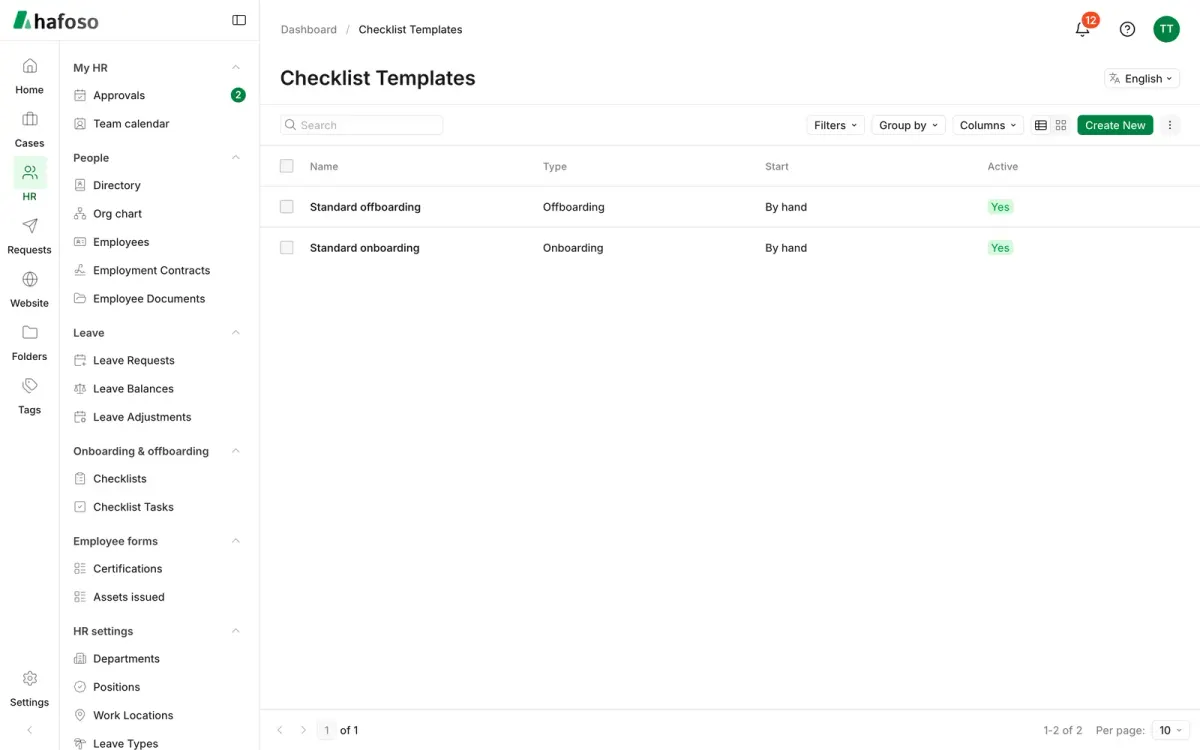
Build a template
Open HR → HR settings → Checklist Templates. Your workspace starts with "Standard onboarding" and "Standard offboarding", which you can edit or turn off; or select Create new.
Give it a Name and a Type: Onboarding or Offboarding.
Under Tasks, add each task with a Title and Instructions. In Assign to, choose HR, The employee's manager, The employee, A person or Anyone with a role, plus an optional Backup.
Set when it's Due: a number of days before, on or after the start date (onboarding) or the end date (offboarding), in calendar or working days. A task can also require a file, or be HR only so the employee never sees it.
Under Applies to, optionally limit the template to some departments, positions, work locations or contract types. Choose Start: By hand or Automatically. Save.
The default templates start by hand until you switch them to Automatically. An automatic onboarding template starts when you save a new employee with a start date; an automatic offboarding template starts when you set an employee's status to Resigned or Terminated with an end date.
Start a checklist by hand
Open the employee in HR → People → Employees and go to the Onboarding & offboarding section.
Select Start checklist, choose the type and one or more templates, then Preview.
Check the tasks, their assignees and due dates, change any of them if needed, and select Start.
If a task's assignee can't be found, for example the employee has no manager, it goes to the Backup, or to HR, and the task shows why. Turn on Invite the new hire to sign in when it starts in the template to send the employee their sign-in invitation automatically.
Follow every running checklist in HR → Onboarding & offboarding → Checklists, with its progress and overdue tasks. Cancel checklist stops one, with a reason.
Do your tasks
Everyone sees the tasks assigned to them in Home → My work → My to-dos, next to their case to-dos. Open a task to read its instructions, then select Complete, or Skip it with a reason. Tasks given to a group, such as HR, can be taken with Take so they're yours, or returned with Hand back.
A new hire who has signed in finds their own tasks in HR → My HR → My onboarding, with what others are doing for them. They never see tasks marked HR only. Until they can sign in, their tasks go to HR, who can complete them on their behalf.
A template that has been used can't be deleted. Untick Active to stop it starting; checklists already running are not changed.
Last updated on
Still need help?
Our team answers by email, usually within one working day.