

Employees
Keep one record per employee, organise departments and positions, use the directory and let employees sign in.
Every person who works for you has one Employee record: their job, their personal details, their documents, contracts and leave. HR staff manage the records; colleagues find each other in the Directory, and employees see and update their own details on My profile.
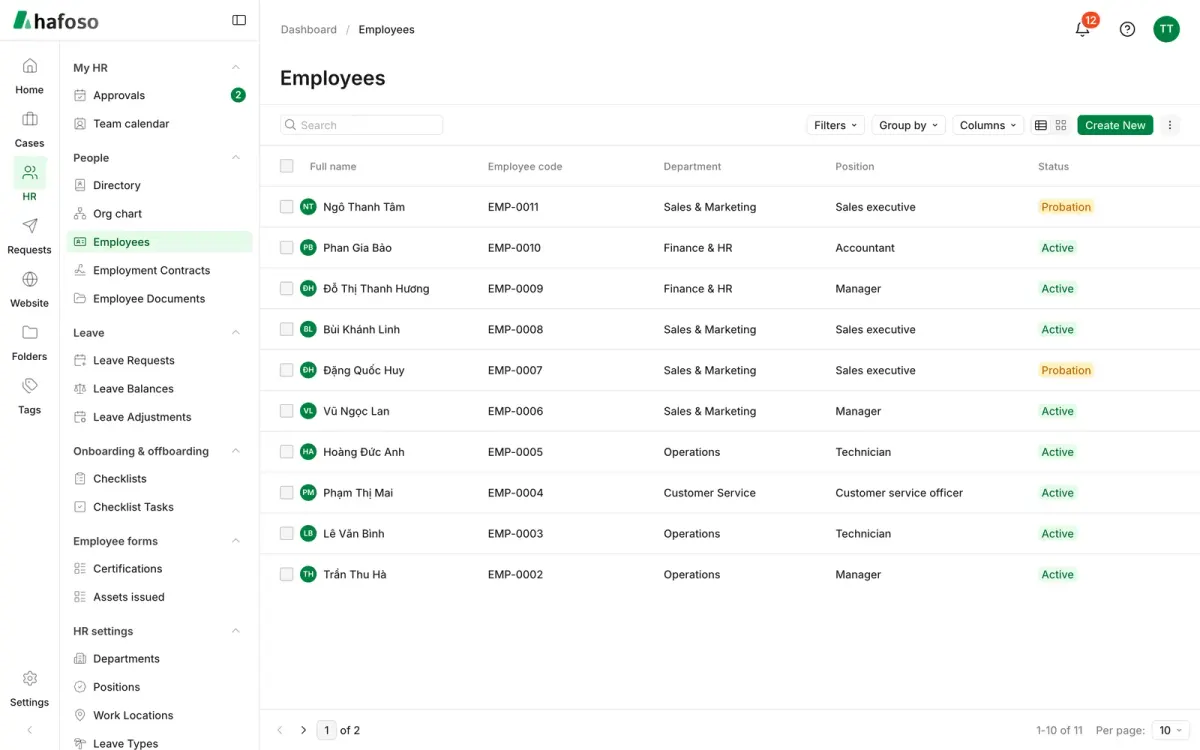
Add an employee
Open HR → People → Employees and select Create new.
Enter the Full name, Work email and Start date, and the job details: Department, Position, Manager and Work location.
Set the Status: Probation, Active, On leave, Resigned or Terminated.
Save. The record gets an Employee code that no other employee can use, following the pattern set in HR Settings.
The record's tabs hold the rest: Profile, Job, Documents, Contracts, Leave, Forms and History. Personal details and HR-only fields are only shown to people whose role allows it, such as View personal details.
When someone leaves, set their status to Resigned or Terminated with an End date. After that date they drop out of the active list, and their sign-in account loses access to the workspace.
An employee with leave, contracts, documents or form records can't be deleted. Once they have resigned or been terminated, use Anonymize to erase their personal details while keeping their history. This can't be undone.
Departments and positions
Set up your organisation in HR → HR settings:
- Departments can be nested, for example "Operations > Warehouse", and have a Head.
- Positions are the job titles you pick on each employee.
A department that still has employees or sub-departments can't be deleted; Hafoso names what's still using it.
The directory and org chart
HR → People → Directory lists your current employees with their photo, position, department, work location, manager, work email and phone. Search by name, code, email or team, narrow it with the filters, and switch between Grid and Table. Select a person to see their manager and direct reports; if you may see their full record, View employee details opens it.
Org chart shows who reports to whom, By reporting line or By department.
Let an employee sign in
Open the employee in HR → People → Employees. They need a work email.
Select Invite to sign in. They get an email to set their password, and the Employee role.
Once signed in, they open HR → My HR → My profile, select Edit, change the details your company lets them change, and Save.
Details they can't change are shown as "managed by HR". Choose which fields employees may edit in HR Settings → Fields employees can edit themselves. A new bank account an employee enters waits for HR approval before it replaces the old one. For inviting other kinds of users, see Invite people.
Last updated on
Still need help?
Our team answers by email, usually within one working day.