

Invite people
Add your team to the workspace by email, choose their roles, and manage pending invitations.
People join your workspace by invitation. Each person signs in with their own email address and gets the roles you choose when you invite them.
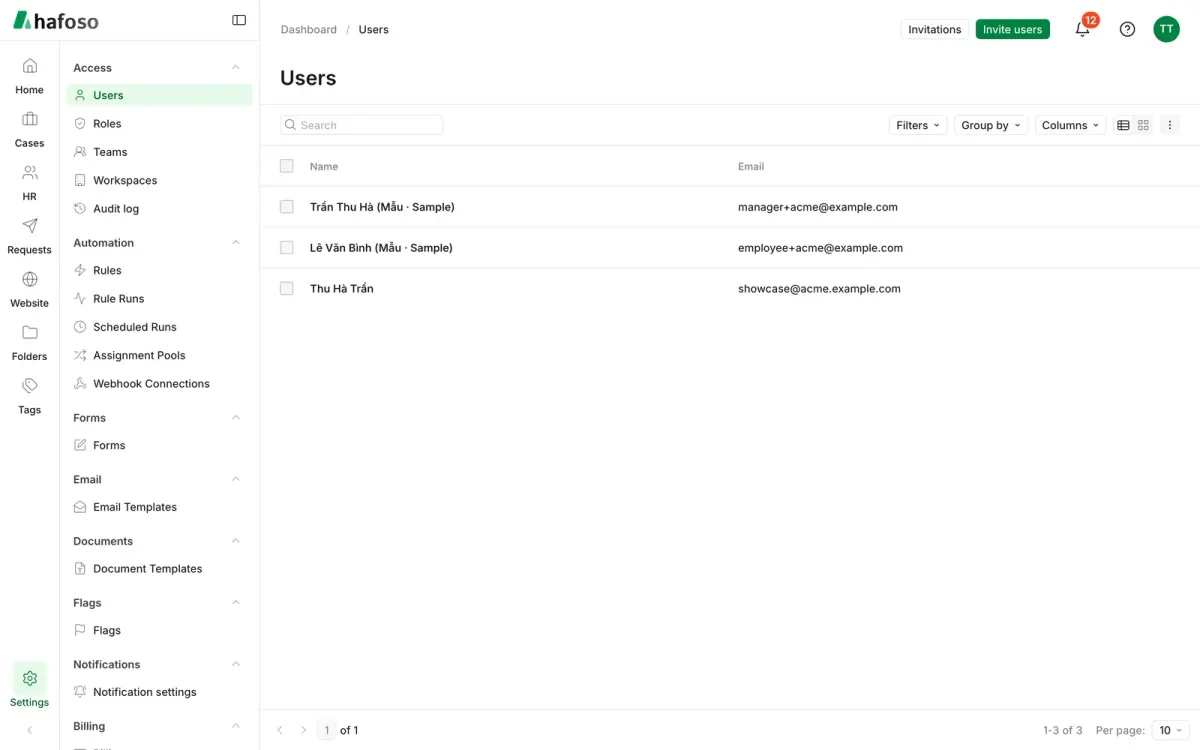
You need permission to manage users. Workspace admins have it; ask yours if you don't see Invite users.
Send invitations
In the sidebar, open Settings → Access → Users.
Select Invite users.
Enter up to 20 email addresses, one per line or separated by commas.
Choose the Roles they get in this workspace. If you choose none, they get the User role.
Select Send invitations. Each person gets an email with a link to set their password and sign in.
Someone who is already a member, or already has a pending invitation, is skipped and listed in the confirmation.
Follow up on invitations
Open Invitations next to Invite users to see every invitation and its status: Pending, Accepted, Expired or Revoked.
- Resend emails the invitation again, for example when it went to spam.
- Revoke cancels a pending invitation so its link no longer works.
Employees
To let an employee sign in to see their own HR information, invite them from their employee record instead: open the employee in HR → People and use Invite to sign in. They get the Employee role, which shows only their own profile, leave and to-dos. See Employees.
Last updated on
Still need help?
Our team answers by email, usually within one working day.